
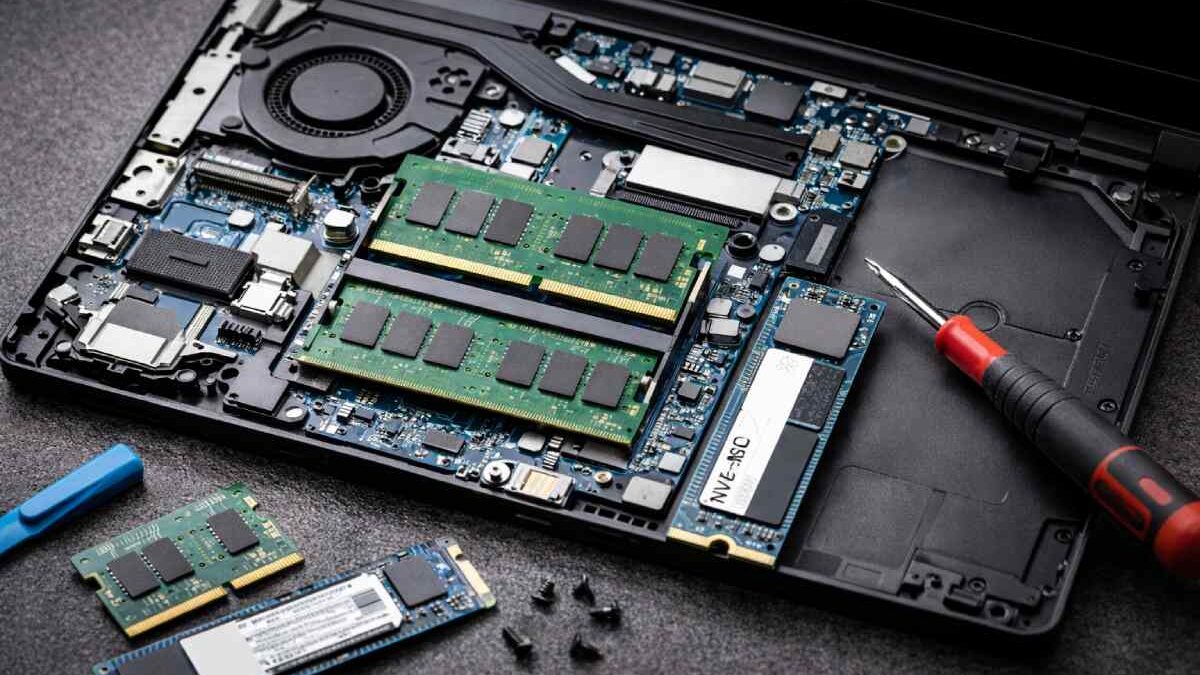
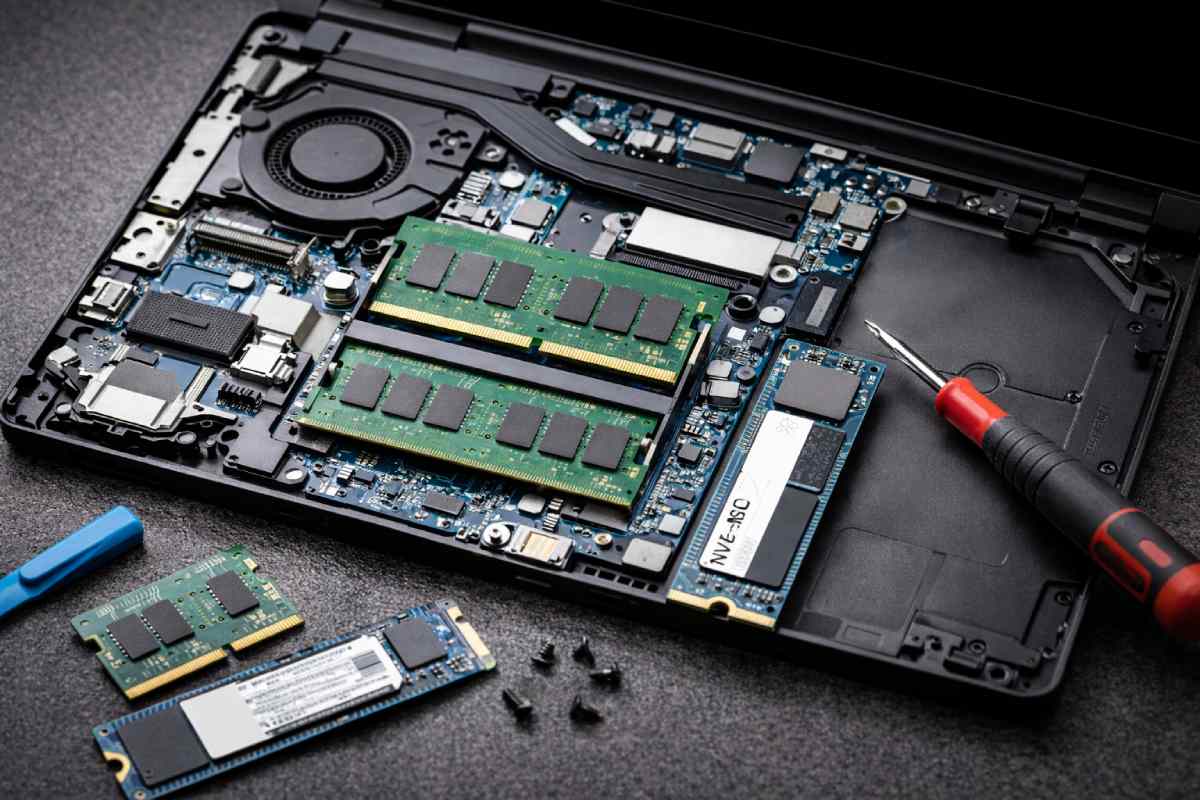
External RAM for laptop — contrary to how the phrase sounds — is not a standard, supported, low-latency hardware product you can plug into USB to become actual system RAM. What people can do instead is increase virtual memory (pagefile/swap), use fast external storage for caching, or upgrade internal SODIMM/LPDDR modules where supported.
This article belongs to Computer Hardware
Table of Contents
Short answer
- Can you add ‘external RAM’? No practical, consumer-grade “external RAM” exists that replaces real DRAM because external buses (USB, Thunderbolt) are orders of magnitude slower and higher-latency than internal memory.
- What to do instead: Upgrade internal RAM (SODIMM), use a fast SSD and configure pagefile/swap, or use small caching schemes (ReadyBoost only in rare, legacy cases).
Why “external RAM” isn’t a practical product
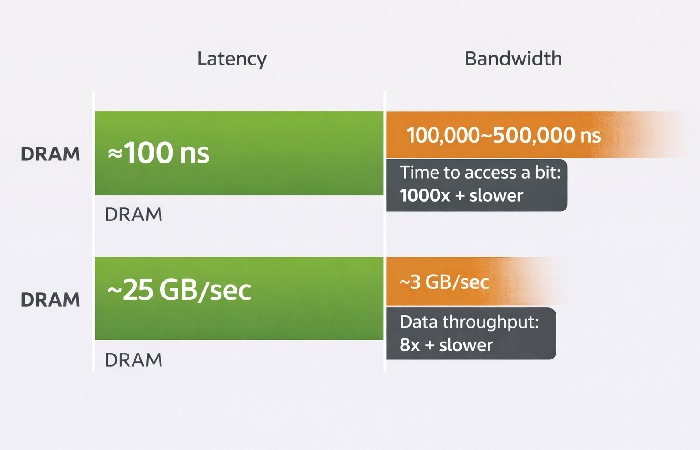
- Latency matters. DRAM is designed for sub-100ns access. External buses (even Thunderbolt) add microseconds of latency and far lower sustained bandwidth versus the CPU-memory channel — so the CPU would stall waiting for data. That kills real RAM performance.
- Bus & protocol overhead. DRAM controllers sit on the motherboard and talk to memory over fast parallel buses; USB and standard external links are serial and introduce protocol overhead that makes them unsuitable for random memory access.
- OS & platform support. Operating systems expect RAM to be directly addressable; they won’t treat a USB device as true volatile memory in the way DRAM is used. You can use external storage for swap/pagefile, but that’s not the same as RAM.
Who this guide is for
- Laptop owners frustrated by slow multitasking.
- People with soldered RAM or no internal upgrade slot wondering about external options.
- IT admins and power users looking for safe workarounds.
- Buyers weighing “external SSD vs. RAM upgrade” decisions.
Who should not rely on external tricks
- Gamers or video editors who need consistent low latency.
- Users expecting external devices to match RAM speeds for live workloads.
- People who assume “more pagefile = as good as more RAM.”
Practical alternatives to “external RAM”
1) Upgrade internal RAM
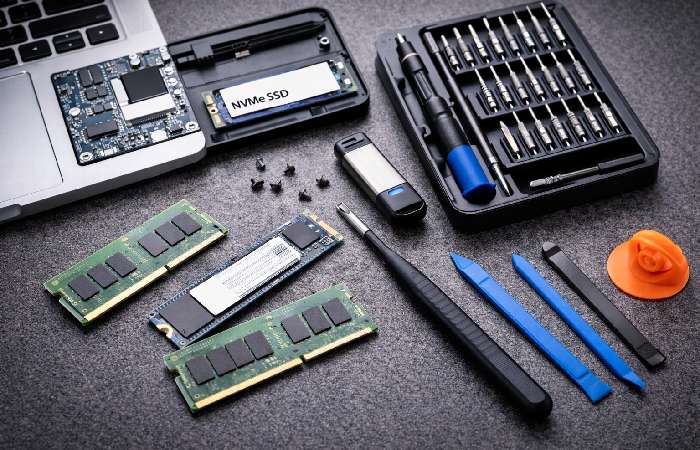
- The simplest and most effective method is to add or replace SODIMM modules in laptops that support upgrades. This gives true DRAM performance for all workloads. Check your laptop manual for supported sizes and speeds.
2) Faster storage + optimized pagefile / swap
- Install a fast NVMe or SATA SSD (internal or external via Thunderbolt) and put the OS/pagefile on it. SSD swap is much faster than HDD swap and reduces stalls when memory pressure occurs. Microsoft documents pagefile management and recommends SSDs for pagefile use.
3) ReadyBoost
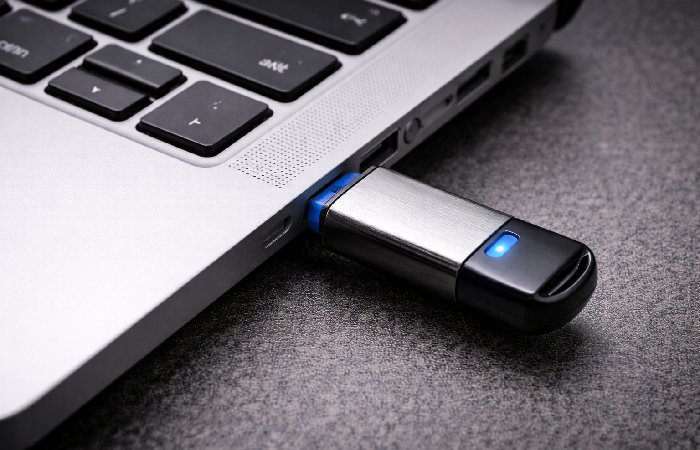
- Windows ReadyBoost can use a USB flash drive as a cache between RAM and HDD. It’s useful for older machines with HDDs; with SSDs, ReadyBoost is usually disabled or pointless.
4) Use virtual memory tuning and app behaviour changes
- Increase Windows pagefile size, limit background apps, use lighter browsers, and enable memory-saving modes in creative apps. These software changes often solve perceived memory shortages without hardware changes.
5) Docking/Thunderbolt solutions
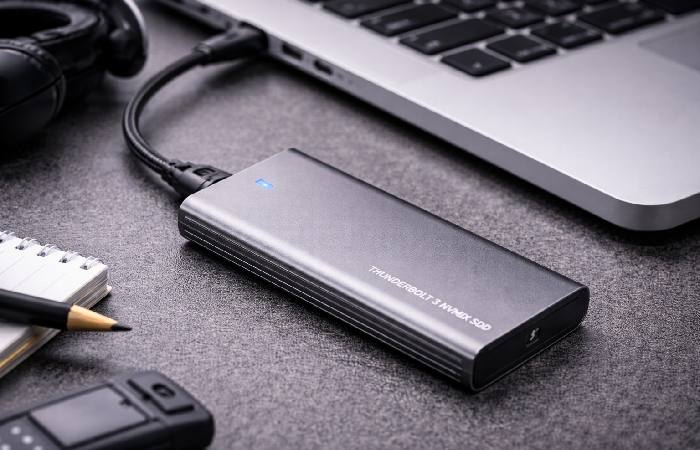
- Thunderbolt external chassis can host SSDs (very fast) or eGPUs — these help with storage and GPU tasks, but they do not add DRAM to the CPU memory subsystem.
Real examples & when they help
- Laptop with 8 GB, HDD: Installing an internal 1TB NVMe and moving the pagefile to it + increasing pagefile size will produce a noticeable snappier experience for multitasking. (Works better than a USB stick ReadyBoost.)
- Soldered RAM (thin ultrabook): If the laptop’s RAM is soldered, the only viable upgrade may be a faster drive for swap, or replacing the whole laptop with a model that supports SODIMM upgrades.
- Very old laptop with HDD and 2–4 GB RAM: ReadyBoost can help short bursts, since the USB flash device can be faster than spinning HDD caching. But for modern SSD systems, it’s largely obsolete.
Benefits & Drawbacks
| Option | Benefit | Drawback |
| Internal RAM upgrade (SODIMM) | True DRAM speed, lowest latency, best outcome | Requires laptop with slots; may void warranty |
| Internal SSD + pagefile | Big improvement vs HDD; cheap; easy | Still slower than RAM; heavy swapping can wear SSD |
| ReadyBoost (USB) | Easy, cheap, helps HDD systems | Mostly obsolete with SSD; limited gains |
| External SSD (Thunderbolt) | Very fast storage for pagefile | Expensive; still not DRAM; needs TB connection |
| “External RAM” devices (hypothetical) | N/A | Not practical — latency/bandwidth/OS limits |
Common mistakes people make
- Buying a USB “RAM box” or random gadget claiming to be RAM — these are either scams or misunderstand features.
- Putting the pagefile on a cheap USB stick expecting RAM-like performance — swap performance equals the device speed; low-quality flash is worse than nothing.
- Assuming ReadyBoost will help on SSD systems — Windows disables/ignores it in that configuration.
Myths vs Facts
- Myth: “I can plug memory into USB and the OS will use it like RAM.”
- Fact: OSes do not treat USB mass storage as volatile main memory; external storage is orders of magnitude slower and not a drop-in replacement.
- Myth: “ReadyBoost will speed any PC.”
- Fact: ReadyBoost only helps specific HDD+low-RAM scenarios; it’s ineffective with SSDs.
- Myth: “More pagefile = more RAM.”
- Fact: Pagefile is slower swap space; it prevents crashes but won’t equal the responsiveness of real DRAM.
Step-by-step: Best practical plan to “add memory”
If your laptop supports internal RAM upgrades
- Check your model’s service manual for SODIMM slots & max supported RAM.
- Buy matched SODIMM modules (same speed/voltage) from reputable brands. (See recommended brands below.)
- Power off, remove battery if possible, install modules, power on and confirm BIOS detects memory.
- Run a memory test (memtest86) to verify stability.
<h3>If RAM is soldered
- Replace HDD with a fast NVMe SSD (if supported) or a high-quality SATA SSD.
- Increase Windows pagefile to a custom size (see Microsoft guidance).
- If on a very old HDD system and you must, try ReadyBoost on a certified USB device for small gains.
If portability is key
- Get a Thunderbolt external SSD (if your laptop has TB4/TB3) and use it for heavy scratch tasks (video working drives, pagefile). It’s fast, but still not DRAM. If you’re considering moving to a desktop system instead of upgrading a laptop with limited memory options, older platforms can still be worth exploring for specific use cases. Our guide to LGA 1155 motherboards covers compatible boards, upgrade considerations, and what to expect from this legacy desktop platform.
My Notes
I’ve upgraded dozens of laptops for clients: when internal SODIMM upgrades were possible, they delivered the biggest, most predictable speed wins. On a handful of very thin ultrabooks with soldered RAM, upgrading the internal storage to NVMe and tuning the pagefile produced meaningful improvements — but never the instant responsiveness of a true RAM increase. In short: real RAM beats tricks every time.
Best hardware & product suggestions
 />
/>
Once you’ve sorted out your RAM and storage requirements, your display is another important part of a comfortable workstation or gaming setup. If you’re looking for a larger desktop display, this Samsung 32-inch curved monitor guide covers its features and what to consider before choosing a curved monitor.
Computer hardware is only one part of the wider electronics ecosystem. If you’re interested in learning about electronic switching components and how they are used in different systems, you can also explore this guide to solid state relays.
If you can add SODIMM RAM
- Crucial / Micron — reliable laptop SODIMMs (DDR4/DDR5 options).
- Kingston (Fury) — mainstream reliable modules.
- Corsair Vengeance (SODIMM) — higher-performance kits.
If you must use fast storage for swap/scratch
- Internal NVMe SSD — Samsung 980/990 series, WD Black SN850/ SN770, Crucial P5 Plus. These deliver excellent swap performance.
- Thunderbolt external NVMe — for laptops with TB ports (very fast, portable).
When you explore ReadyBoost
- Use high-quality USB 3.1/3.2 flash drives certified for ReadyBoost; small benefit only for HDD systems.
Quick configuration cheatsheet
- Put pagefile on internal NVMe if possible.
- For low-RAM + HDD, enable ReadyBoost on a fast USB 3.0 device (rarely helpful with SSDs).
- Close background apps and enable browser tab management/limits for heavy Chrome users.
FAQs
Q: Is there such a thing as USB external RAM for laptops?
A: No — consumer USB/Thunderbolt devices cannot act as true DRAM because of latency and OS limitations. Use internal upgrades or fast SSDs instead.
Q: Can I use an external SSD as RAM?
A: You can place the operating system’s pagefile or swap on an SSD (internal or Thunderbolt external) to alleviate memory pressure, but it is not a replacement for actual RAM.
Q: What’s ReadyBoost and should I use it?
A: ReadyBoost lets Windows use a USB flash device as a cache between RAM and an HDD. It’s useful only for older HDD systems and is largely unnecessary with modern SSDs.
Q: If my RAM is soldered, what are my options?
A: Replace internal storage with a fast NVMe SSD, tune virtual memory, or consider a replacement laptop with upgradeable RAM.
High-Authority Source Links
- Microsoft — Page file & virtual memory guidance
- Microsoft — ReadyBoost support
- Tom’s Hardware — Best RAM guides and upgrade advice
- Superuser (expert Q&A) — Why external devices aren’t a RAM substitute
- Wikipedia — Memory latency (technical background)
Internal linking suggestions
- Laptop upgrade guide — (create if missing)
- SSD buying guide — (link to your SSD roundup)
- RAM basics / buying tips — (link to RAM buying posts)
Final Conclusion
In short: External RAM for Laptop – Best External RAM for Laptop is a misleading search — there is no practical consumer external RAM that matches internal DRAM. For real, reliable performance gains, upgrade internal SODIMM RAM whenever possible; otherwise invest in a fast SSD (internal or Thunderbolt external), configure virtual memory correctly, and use smart app management. Those steps will deliver the best results if your laptop feels memory-starved.