
Halo Infinite Won’t Launch (PC) — Restart, close overlays, verify files/EAC, update or rollback GPU driver, and if you’re on Steam toggle High-Res Texture DLC off (Steam → Library → Halo Infinite → Properties → DLC → uncheck Multiplayer High-Res Textures). If you’re on the Microsoft Store/Xbox app, install the October/2025 patch — it fixed a known Xbox/Microsoft Store launch issue.
Table of Contents
Quick 7-step checklist
- Restart your PC.
- Close overlays & OSDs (Discord overlay, GeForce overlay, RTSS, MSI Afterburner).
- Verify game files (Steam → Properties → Verify integrity; Xbox app → Manage → Repair).
- Repair Easy Anti-Cheat (run the EAC installer in the game folder and choose Repair).
- Update Windows and GPU drivers — or roll back to the last known working driver if crashes started after a driver update (example: some users had to roll back from NVIDIA 555.99 to 555.85 in mid-2024).
- If on Steam, uncheck High-Res Texture DLCs in Properties → DLC as official workaround for crashes.
- Disable antivirus temporarily (or add exceptions) and try launching.
If Easy Anti-Cheat appears missing or corrupted, official troubleshooting steps are documented here: Easy Anti-Cheat installation error troubleshooting.
Why Halo Infinite fails to launch — common causes
- Corrupt EAC or missing EAC install (EAC prevents launch when broken).
- Conflicting overlays, monitoring software or USB devices (controllers, capture cards). Community troubleshooting consistently flags overlays and RTSS as culprits.
- Graphics driver regressions (a specific NVIDIA driver in 2024 broke launches for many players; vendor patches or rollbacks fixed it).
- DLC mismatch (High-Res Texture DLC can cause Steam installs to crash unless toggled correctly).
Full step-by-step troubleshooting
Basic health checks
- Reboot. Disconnect unnecessary USB devices (controllers, capture cards).
- Try launching with keyboard/mouse only. Some users found controllers caused startup to hang.
Update Windows & GPU drivers
- Run Windows Update (fixes DirectX/OS libraries).
- Update GPU drivers from NVIDIA/AMD official downloads. If crashes began after a driver update, roll back to the previous driver (community-documented successful rollback: NVIDIA 555.85 → 555.99 caused crashes; 556.12 later fixed it for many players).
Quick table — driver action guidance
| Symptom | Action |
| Crash started after driver update | Roll back GPU driver to previous stable version, or use DDU then install driver known to work. |
| Driver is old and game not starting/rendering | Install latest driver from vendor site. |
Disable overlays & monitoring tools
Turn off:
- Discord overlay (User Settings → Overlay).
- Steam overlay (Steam → Settings → In-Game).
- GeForce Experience overlay (In-Game Overlay → Off).
- RTSS / RivaTuner / MSI Afterburner / FPS counters — terminate via Task Manager. Overlays still attached can break the graphics init chain.
Many app crashes are also caused by mobile or software conflicts — see: Note 9 apps crashing fixes.
Verify / Repair Easy Anti-Cheat (EAC) and game files
- Steam: Right-click game → Properties → Local Files → Verify integrity.
- Repair EAC: find EasyAntiCheat installer in the game folder and run Repair. If the Xbox app install shows EAC missing, use the app’s Manage → Repair feature. These steps are recommended by Halo Support.
Steam High-Res Texture DLC workaround
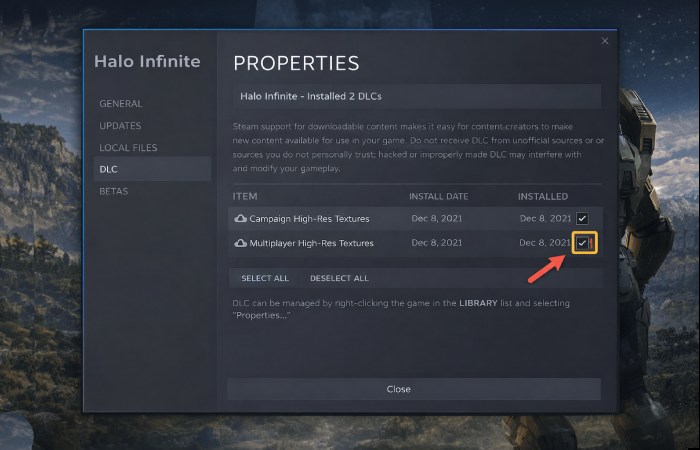
If game crashes at launch on Steam, uncheck Multiplayer High-Res Textures (and, if needed, Campaign High-Res) under Properties → DLC, let Steam update, then relaunch. This is an official Halo Support workaround for certain crashes.
Antivirus/Security exclusions
- Add exceptions for HaloInfinite.exe, Steam/Xbox app, and EasyAntiCheat. Don’t leave protection off — use exclusions if the game runs with AV disabled.
Windows Game Mode/Game Bar
- Try toggling Game Mode off and Xbox Game Bar off (Settings → Gaming) if you see kernelbase.dll or similar errors; these settings still help for some users.
Run as Admin + Compatibility
- Try launching the game executable as Administrator, or set Compatibility → Windows 10 (rarely needed but harmless to test).
Multi-monitor/Alt+Tab
- Temporarily disable extra monitors while launching if you use multi-display; alt+tab while the game initializes can cause crashes on some configurations. (Start single-monitor, then re-enable.)
SFC/DISM and runtimes
Run (elevated):
sfc /scannow
dism /online /cleanup-image /restorehealth
Install/repair Visual C++ redistributables (2015–2022) and DirectX runtimes if missing.
Reinstall the game (if nothing else works)
- Backup cloud saves (if applicable).
- Uninstall, delete leftover \steamapps\common\Halo Infinite\ or WindowsApps residue, then reinstall. Reinstall forces EAC reinstall.
Hardware checks (last resort)
- Monitor CPU/GPU temps on launch — thermal throttle can crash initialization.
- Run memtest86 / Windows Memory Diagnostic and chkdsk on the game drive.
Which older tips still work — and which to avoid
Still useful: disable overlays, verify EAC, rollback drivers when a bad driver is identified, toggle High-Res DLC on Steam.
Avoid: permanent AV disablement (use exclusions), reinstalling Windows without trying SFC/DISM and targeted repairs first.
What to gather before contacting Halo Support
- Exact game version and platform (Steam / Xbox App / Microsoft Store).
- Windows version (Settings → About).
- GPU model and driver version (NVIDIA/AMD).
- Recent change that preceded failure (driver update, Windows update, new USB device).
- Event Viewer Application log snippet (timestamped error).
- Screenshot of any error message or crash dialog.
- Steps tried (verify files, EAC repair, DLC toggled, driver rollback).
- If possible, attach EasyAntiCheat logs from the game folder. (Halo Support requests the above when investigating.)
Quick “first-hour” action plan
- Reboot PC.
- Disconnect controllers & USB capture devices.
- Turn off overlays.
- Verify game files / Repair EAC.
- Toggle Steam High-Res DLC off if on Steam.
- Update or roll back GPU driver if driver change correlated with the issue.
Quick table (common errors → targeted fix)
| Symptom / Error | Most likely cause | Targeted fix |
| Game crashes immediately on launch | EAC broken / missing or corrupted files | Repair EAC, verify game files (Steam/Xbox app). |
| Crash after update / driver install | GPU driver regression | Roll back driver to previous version or install vendor fix. |
| Steam install crashes before menu | High-Res Texture DLC mismatch | Steam → Properties → DLC → uncheck Multiplayer/Campaign High-Res Textures. |
| Game launches but black screen / alt+tab hangs | Overlay/monitor conflict | Disable overlays, run single monitor during launch. |
Halo Support also recommends verifying files or reinstalling when EAC fails to install correctly on PC: Halo Infinite known issues & PC fixes.
FAQs (paste into FAQ schema)
Q: Why does Halo Infinite say Easy Anti-Cheat is missing?
A: EAC may fail to install or becomes corrupted; repairing via the EasyAntiCheat installer in the game folder or using Xbox app → Manage → Repair typically resolves this.
Q: Should I roll back my GPU driver to fix launch crashes?
A: If the crash began immediately after a driver update, rolling back to the previous stable driver is a proven short-term fix (then wait for the vendor or 343 patch). Example: some users rolled back from NVIDIA 555.99 to 555.85.
Q: Does Halo Support recommend disabling High-Res textures?
A: For certain Steam crashes, Halo Support recommends toggling off Multiplayer (and if needed Campaign) High-Res Texture DLC as an official workaround.
Pull quote (expert tone)
“Follow the quick-check first (restart → overlays off → verify EAC). Most launch issues are a broken EAC, a bad driver, or a conflicting overlay — and each has a simple, testable fix.” — TechieTimes troubleshooting desk.
Short conclusion
The most reliable fixes are:
1) verify/repair EAC and game files;
2) follow the official Steam DLC toggle if your install crashes;
3) update or rollback GPU drivers when a driver is the root cause; and
4) disable overlays and background OSDs.
If none of those work, collect Event Viewer logs and EAC logs and open a support ticket with Halo Support (include the files and steps you’ve already taken).