
Creative Cloud Tutorial – Modern digital content creation relies heavily on powerful creative software. Adobe Creative Cloud has become the industry standard for designers, photographers, video editors, and digital creators.
The platform provides access to a complete ecosystem of creative tools that can be installed and managed through a single desktop application.
Some of the most popular apps included in Creative Cloud are:
- Photoshop
- Illustrator
- Premiere Pro
- InDesign
- Lightroom
- Adobe Express
- After Effects
- Acrobat Pro
These apps cover a wide range of creative tasks including graphic design, photo editing, video production, animation, and document workflows.
In this tutorial-style guide, we’ll walk through the key steps to start using Creative Cloud and create your first projects.
Table of Contents
What Is Adobe Creative Cloud?
Adobe Creative Cloud is a collection of professional creative applications delivered through a subscription service.
Instead of purchasing individual software licenses, users subscribe to Creative Cloud and gain access to a library of applications that can be downloaded and updated from the Creative Cloud desktop app.
The Creative Cloud platform currently includes:
| Category | Example Apps |
| Graphic Design | Photoshop, Illustrator |
| Photography | Lightroom |
| Video Editing | Premiere Pro |
| Motion Graphics | After Effects |
| Publishing | InDesign |
| Web & UI Design | Adobe XD |
Creative Cloud also integrates cloud storage, fonts, templates, and collaboration features to streamline creative workflows.
Step 1: Create an Adobe Account
Before using Creative Cloud, you need an Adobe account.
How to create an account
- Visit the Adobe website.
- Click Sign In or Create an Account.
- Enter your email address.
- Choose a password.
- Verify your email.
Once your account is created, you can start a free trial or subscription plan to access Creative Cloud apps.
Step 2: Download the Creative Cloud Desktop App
The Creative Cloud desktop app acts as a central hub where you install and manage all Adobe applications.
Steps to install it
- Log in to your Adobe account.
- Go to the Creative Cloud download page.
- Click Download Creative Cloud Desktop App.
- Run the installer.
- Sign in with your Adobe ID.
Once installed, the Creative Cloud desktop app allows you to browse available tools and install them with one click.
Step 3: Install Your First Creative Cloud App
After installing Creative Cloud, you can start downloading individual apps.
How to install apps
- Open the Creative Cloud desktop application.
- Go to the Apps section.
- Browse available software.
- Click Install next to the desired app.
Popular beginner apps include:
| App | Purpose |
| Photoshop | Photo editing |
| Illustrator | Vector graphics |
| Premiere Pro | Video editing |
| Lightroom | Photo management |
| Adobe Express | Quick social media graphics |
Creative Cloud subscriptions typically include more than 20 apps for creative work.
Step 4: Organize Your Creative Cloud Workspace
Once your apps are installed, you can start organizing your workspace.
Key features of the Creative Cloud interface
- Home dashboard – view recent projects
- Cloud storage – save files online
- Libraries – share assets between apps
- Fonts – access thousands of fonts
These features allow creators to maintain a consistent workflow across multiple Adobe tools.
Step 5: Create Your First Project in Photoshop
Photoshop is one of the most widely used apps in Creative Cloud.
Beginner tutorial: edit your first photo
- Open Photoshop.
- Click File → Open.
- Select an image.
- Use the Crop Tool to adjust framing.
- Use Adjustment Layers to modify brightness and contrast.
- Export the edited image.
Common Photoshop tools include:
- Brush tool
- Layers panel
- Selection tools
- Filters
Recent updates have introduced AI-powered editing tools such as Generative Fill, which automatically adds or modifies content in images.
Step 6: Create a Logo Using Illustrator
Adobe Illustrator is designed for vector graphics, which means designs can scale without losing quality.
Step-by-step logo design
- Open Illustrator.
- Create a new document.
- Use the Shape Tool to draw basic shapes.
- Combine shapes to form a design.
- Add text using the Type Tool.
- Save your logo as SVG or PNG.
Illustrator is commonly used for:
- Logo design
- Icons
- Infographics
- Illustrations
Because vector graphics are resolution-independent, they are ideal for both digital and print design.
Step 7: Edit Your First Video in Premiere Pro
Premiere Pro is one of the most popular video editing tools in Creative Cloud.
Beginner video editing tutorial
- Open Premiere Pro.
- Create a new project.
- Import video clips.
- Drag clips onto the timeline.
- Trim unwanted sections.
- Add transitions.
- Export the final video.
Premiere Pro is widely used in industries such as:
- YouTube content creation
- Film editing
- Corporate video production
- Marketing videos
Step 8: Design Social Media Graphics with Adobe Express
For beginners who want quick designs, Adobe Express is a simplified design tool.
How to create a social media graphic
- Open Adobe Express.
- Choose a template.
- Replace images and text.
- Adjust colors and fonts.
- Download or share the design.
Adobe Express is ideal for:
- Social media posts
- Flyers
- Presentations
- Marketing graphics
Creative Cloud Apps Overview
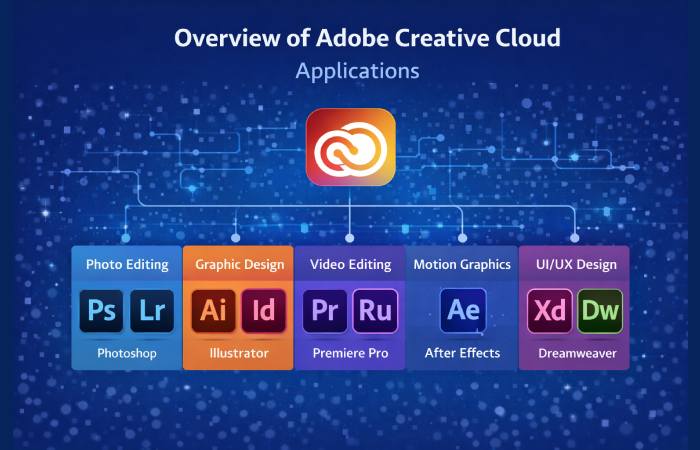
Creative Cloud contains a wide variety of applications for different creative fields.
| Category | Popular Apps |
| Photo Editing | Photoshop, Lightroom |
| Graphic Design | Illustrator, InDesign |
| Video Editing | Premiere Pro, Premiere Rush |
| Motion Graphics | After Effects |
| UI/UX Design | Adobe XD |
| Web Design | Dreamweaver |
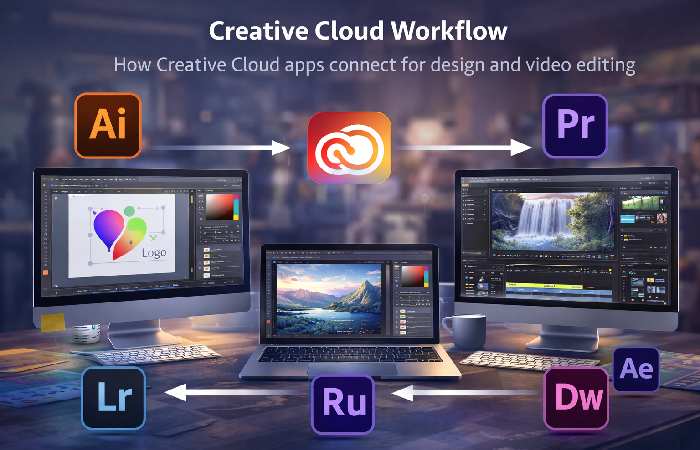
This ecosystem allows creators to move projects between apps seamlessly.
Creative Cloud AI Features
Adobe has increasingly integrated AI into Creative Cloud through its Firefly AI platform.
Examples include:
- AI image generation
- Automatic object removal
- Generative Fill in Photoshop
- AI video editing tools
These features allow creators to produce professional content more efficiently.
Creative Cloud Collaboration Tools
Creative Cloud also supports collaboration features for teams.
Key collaboration tools include:
- Shared cloud documents
- Creative Cloud Libraries
- Frame.io video review
- Team project workflows
These features enable teams to work together on large creative projects.
Tips for Learning Creative Cloud Faste
Beginners often feel overwhelmed by the number of apps available.
Here are some practical learning tips:
Start with one app
Focus on learning Photoshop or Illustrator first.
Use official tutorials
Adobe provides built-in tutorials within its apps to help users learn quickly.
Practice small projects
Examples include:
- Social media graphics
- Logo design
- Photo edits
- Short videos
Learn keyboard shortcuts
Shortcuts significantly improve workflow speed.
Common Mistakes Beginners Make
When starting with Creative Cloud, beginners often make these mistakes.
Installing too many apps
Focus on the apps relevant to your work.
Ignoring layers
Layers are essential in Photoshop and Illustrator.
Not organizing files
Use folders and cloud libraries to keep projects organized.
FAQ
What is Adobe Creative Cloud used for?
Creative Cloud is used for graphic design, photo editing, video production, animation, and web design.
How many apps are included in Creative Cloud?
Creative Cloud includes more than 20 creative applications such as Photoshop, Illustrator, and Premiere Pro.
Is Creative Cloud beginner-friendly?
Yes. Many apps include tutorials and templates that help beginners learn quickly.
Is Creative Cloud free?
Adobe offers a free trial, but full access requires a subscription plan.
Which Creative Cloud app should beginners start with?
Most beginners start with:
- Photoshop
- Illustrator
- Adobe Express
Final Conclusion
Adobe Creative Cloud has become one of the most powerful platforms for digital creativity. With more than 20 professional tools covering graphic design, video editing, photography, and publishing, it provides everything creators need in one ecosystem.
By following step-by-step tutorials and focusing on a few core apps at first, beginners can quickly learn how to produce professional-quality content. As you gain experience, Creative Cloud becomes an incredibly powerful toolkit that supports everything from simple designs to complex multimedia projects.
Mastering Creative Cloud is therefore an essential skill for designers, marketers, video editors, and digital creators in today’s content-driven world.