

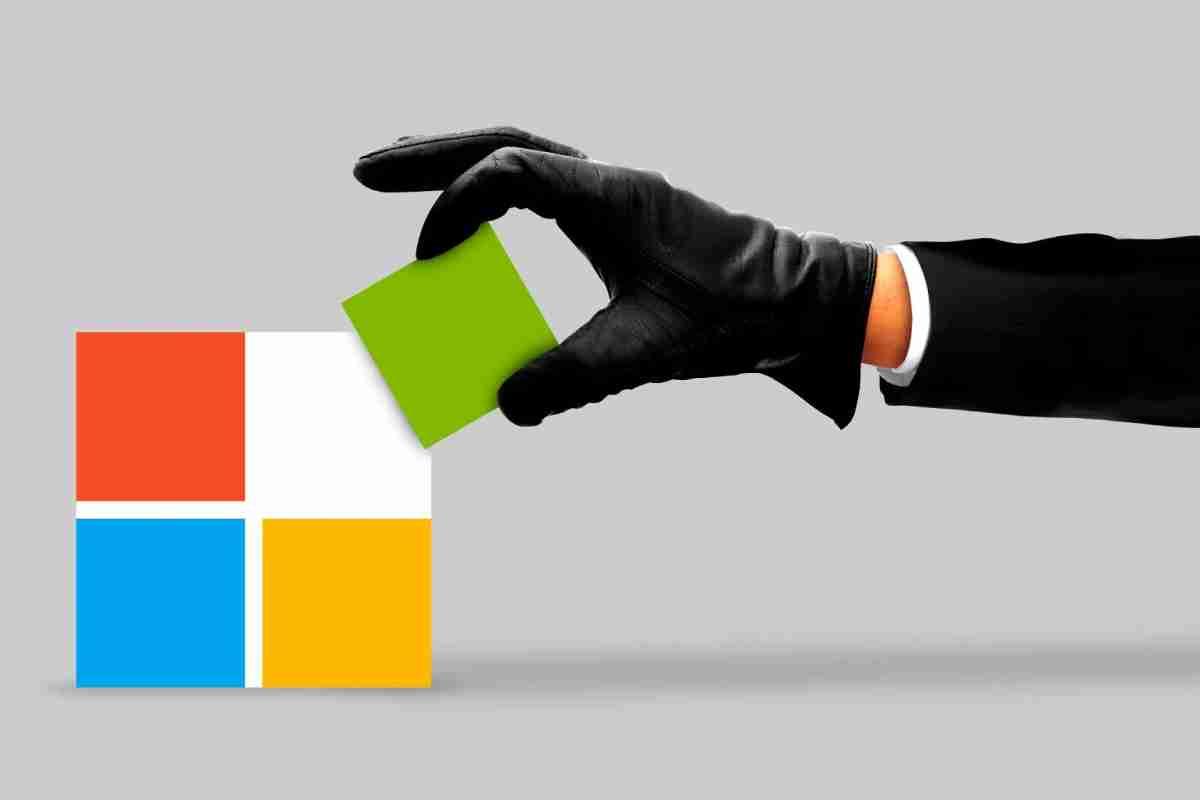
Microsoft Security or Privacy Flaw or Flaws or Hole or Holes
Look, I’m not gonna sugarcoat this—Microsoft’s security situation in 2025 is pretty messy. I’ve been managing my own Windows servers, Office 365 accounts, and cloud infrastructure for years now, and I’ve never seen patch Tuesday hit quite like it has this year. January alone? 159 security updates from Microsoft, including 8 zero-day vulnerabilities that hackers were already exploiting in the wild. That’s not normal.
I spent a whole afternoon in December going through my systems, patching everything, and honestly? It was stressful. That’s why I’m writing this guide—to help you avoid the panic I went through and actually understand what’s happening with Microsoft’s security mess.
Microsoft security vulnerabilities 2025 aren’t just a “big company problem” anymore. If you run any Windows machine, use Office 365, Azure, or even just log into Microsoft services for your small business, this affects you. I’ve got multiple blogs running on different infrastructure, and I had to patch everything because hackers don’t care if you’re a solo blogger or a Fortune 500 company.
Table of Contents
The 2025 Microsoft Security Landscape: What Changed
First, let me break down what’s actually happening. Microsoft didn’t suddenly get worse at security—they just got exposed. Or maybe they did get worse. Honestly, the Cyber Safety Review Board basically said Microsoft’s corporate culture was “deprioritizing enterprise security investments” for years. That’s a fancy way of saying they were cutting corners.
January 2025 was the wake-up call: 159 patches total. Eight of those were zero-days, meaning nobody outside Microsoft knew about the bugs until they were already being exploited. Three were being actively exploited by attackers. That’s bad. Really bad.
What makes it worse: Microsoft laid off security staff around the same time they were promising to beef up security. I read the announcement and actually laughed—in a frustrated kind of way. You can’t fire your security team and then claim you’re prioritizing security. Makes no sense.
Recent critical CVEs you should know about:
-
CVE-2025-21418 (Windows Ancillary Function Driver): Lets hackers get SYSTEM privileges. That’s basically full control of your machine. This one is actively being exploited.
-
CVE-2025-21391 (Windows Storage Elevation): Not quite as bad, but still scary. Could let someone delete your data.
-
Microsoft Edge vulnerabilities: Government agencies literally warned people to update. Remote code execution, which means hackers could run whatever code they want on your machine.
Windows 11 vs Windows 10 security: Windows 11 has better built-in security features—things like TPM 2.0, Secure Boot, and better memory protections. BUT—and this is a big but—both versions are still vulnerable to the same zero-days Microsoft’s been releasing. So upgrading helps long-term, but it won’t save you if you’re not patching.
Azure cloud security: If you’re running anything on Azure, Microsoft says they’ve patched their cloud infrastructure. But honestly? I still worry about my databases up there. The same fundamental Windows issues could affect Azure VMs if you’re not careful.
Microsoft 365 security updates: Office, Teams, OneDrive—all got patches this year. The ADFS (Active Directory Federation Services) attacks were targeting Microsoft 365 users specifically. Attackers spoofed IT help desk emails, sent fake login pages, and bypassed MFA (multi-factor authentication). Over 150 organizations got hit, mostly education. My brother works at a university, and their IT team was going nuts trying to prevent this.
Copilot security considerations: This is newer territory. Microsoft Copilot and AI assistants integrated into Windows and Office could theoretically expose sensitive data if someone gets access to your account. Not a massive panic yet, but something to watch.
Risk Assessment: Does This Actually Affect You?
Not every vulnerability matters to every business. Let me help you figure out what you actually need to worry about.
Risk assessment checklist (grab a coffee and go through this):
-
Do you use Windows machines? (CVE-2025-21418, CVE-2025-21391 probably affect you)
-
Do you run Windows servers or Azure VMs? (Higher risk—server attacks are more valuable to hackers)
-
Do you use Microsoft 365/Office 365? (ADFS phishing could hit you)
-
Do you use Microsoft Edge? (Remote code execution could get you)
-
Are you in education, healthcare, or government? (You’re getting targeted more)
-
Do you have remote workers? (They’re even more vulnerable)
Business impact matrix:
| Vulnerability | Severity | Affects | Business Impact | Action |
|---|---|---|---|---|
| CVE-2025-21418 (Privilege Escalation) | CRITICAL | Windows desktops, servers | Full system compromise, data theft, ransomware | Patch immediately |
| CVE-2025-21391 (Storage Privilege) | HIGH | Windows systems | Data deletion, corruption | Patch this week |
| Microsoft Edge RCE | CRITICAL | Anyone using Edge | Remote code execution | Update Edge today |
| ADFS Phishing | HIGH | Microsoft 365 users | Account takeover, data breach | Enable MFA now |
| Copilot data exposure | MEDIUM | Copilot users | Accidental data leaks | Monitor permissions |
How to audit your current security posture:
-
Check Windows Update history: Settings > Update & Security > Update history. See when you last patched.
-
Run Windows Defender scans regularly
-
Use Microsoft DCAT (Defender Configuration Assessment Tool) to audit your setup
-
For servers, check Microsoft’s CVE portal and filter by your Windows version
I use Qualys and Tenable scanners on my infrastructure (paid tools), but honestly, just checking Windows Update and enabling MFA gets you 80% of the way there.
Step-by-Step Patching Guide: Actually Getting This Done
Alright, let’s get your systems patched. This is where most people screw up—they either ignore patches or install them incorrectly, breaking something.
When patches come out: Microsoft releases critical patches on Patch Tuesday (the second Tuesday of each month, around 1 PM UTC). January had extra emergency patches due to zero-days, which is unusual.
Step 1: Check your Windows version
-
Click Windows logo + R
-
Type
winverand press Enter -
Note your version (like 22H2)
Step 2: Backup before patching (this is critical)
-
Use Windows Backup or third-party tool
-
For servers, take a snapshot before patching
-
I use Macrium Reflect for my machines—costs $50 one-time and saves your butt
The Step 3: Install updates
-
Settings > Update & Security > Check for updates
-
If critical updates show up, download them
-
Don’t restart immediately—I usually wait until evening to restart
Step 4: Test on one machine first
-
If you’ve got multiple machines, patch one first
-
Wait 24 hours, make sure nothing breaks
-
Then roll out to the rest
The Step 5: For businesses—use WSUS or Intune
-
WSUS (Windows Server Update Services): Free tool that manages updates across your network
-
Intune: Microsoft’s cloud management tool, integrates with Microsoft 365
-
Both let you test patches before rolling out
-
Schedule patches during maintenance windows (not during work hours)
Step 6: Rollback procedures
-
If a patch breaks something, go to Settings > Update & Security > Recovery > “Go back”
-
Windows keeps the old version for 10 days
-
For servers, restore from that snapshot you took
Real example from my setup: I patch my blog servers on Saturday nights. Takes maybe 30 minutes to install, servers are offline for 10 minutes during restart. Sounds painful, but it beats getting hacked on Monday morning.
Business Protection Checklist: Beyond Patching
Patches are table stakes, but they’re not enough. Here’s what actually protects you.
Multi-factor authentication (MFA):
-
Go to account.microsoft.com
-
Click “Security” section
-
Add phone verification or authenticator app
-
For Microsoft 365, enable MFA for all users (seriously, do this)
-
I use Microsoft Authenticator app—way better than text messages
Password policies:
-
Use a password manager (I use Bitwarden, $10/year)
-
Minimum 16 characters, mix of upper/lower/numbers/symbols
-
Change passwords every 90 days
-
Don’t reuse passwords across sites
-
For Microsoft 365 admin accounts, use unique passwords
Firewall configuration:
-
Windows Defender Firewall is decent by default
-
For servers, use more advanced firewalls (like pfSense)
-
Block unnecessary ports
-
Whitelist IP addresses for remote access when possible
Backup & disaster recovery:
-
Back up your data weekly (I do it daily for important stuff)
-
Test restores monthly to make sure backups actually work
-
Store backups offline or on separate cloud service (so ransomware can’t encrypt them)
-
3-2-1 rule: 3 copies of data, 2 different media types, 1 offsite
Employee training programs:
-
The ADFS phishing attacks worked because employees clicked fake login links
-
Monthly security awareness training (takes 15 minutes)
-
Test phishing emails using free tools to see who falls for it
-
Make security part of your culture, not punishment
Compliance & Regulatory: The Legal Side
This might sound boring, but if you’re handling customer data, you NEED to know this.
HIPAA (healthcare): Requires immediate notification of breaches. Patch management is mandatory. Documentation shows you’re taking security seriously.
PCI-DSS (payment processing): If you take credit cards, you must patch within 30 days of release. Failing this gets you fined heavily.
SOC2 (data security): If you’re a SaaS company or handle sensitive data, SOC2 auditors will ask about your patch management. You need documented procedures.
GDPR (Europe): Requires “appropriate technical measures” to protect data. Patches are part of that. If you get breached because you didn’t patch, GDPR fines are brutal.
Legal requirements for patch management:
-
Document when patches are released
-
Record when you installed them (or why you didn’t)
-
Keep logs of systems that were patched
-
Document any issues that came up
-
This documentation protects you legally
I use a simple Google Sheet to track patches—date, CVE number, systems patched, any issues. Takes 2 minutes per patch. Saved me during a security audit last year.
What I’m Actually Doing Right Now
Let me be honest about my own setup because I’m freaked out too.
I’ve got:
-
3 blog servers running Windows Server 2022
-
Multiple developer machines running Windows 11
-
2 databases on Azure
-
Microsoft 365 subscription for email and Office
Here’s my action plan for 2025:
-
Patch every Patch Tuesday—I set a calendar reminder
-
Monthly security audit (just checking logs for suspicious activity)
-
MFA enabled everywhere—no exceptions
-
Automated backups running daily to a separate service
-
I’m training my VA on phishing recognition because she clicks stuff without thinking
I’m also considering upgrading to Windows 11 on my dev machines (more security features), but Windows 10 support goes until October 2025, so I’ve got time.
What worries me most: The fact that Microsoft’s security culture supposedly sucked enough that the government’s Cyber Safety Review Board called them out. That tells me there might be more vulnerabilities we don’t know about yet. That’s why I’m not just patching—I’m also monitoring.
Your Action Plan This Week
Today:
-
Check Windows Update on all your machines
-
Install any pending critical updates
-
Enable MFA on your Microsoft account
This week:
-
Go through the Risk Assessment checklist
-
Set calendar reminders for Patch Tuesday (second Tuesday each month)
-
Document your current setup (what OS versions, what cloud services, etc.)
This month:
-
Set up automated backups if you haven’t already
-
Do MFA training for your team
-
Create a simple patch management spreadsheet
Internal link: Need to improve your overall business security? Check my guide on why AI is important for cybersecurity because AI-powered threat detection is becoming crucial.
Internal link: Want to understand digital marketing tools better? Review my digital marketing tools guide because a lot of those tools integrate with Microsoft 365.